Introduction
For this tutorial, I am assuming that you have a self-hosted WordPress website/blog. I will be using the Twenty Eleven Theme which ships with WordPress. It is the default installed theme. If you have installed a different theme, your screen may look slightly different than mine, but under the hood everything should be in the same place. This tutorial will help you set up icons on your site that look like this:

Set up all of Your Social Media Accounts
Before you can add the icons to your site, you must have your accounts set up and have the links to your profiles. Once you have this information, you’ll be good to go. –>Make a list of the sites you want icons for, gather your account info (use Evernote to store all your links) and set up any accounts that you don’t have.
Select a set of Social Media Icons
If you haven’t already, select a set of icons from one of these sites:
- 60 Gorgeous Free Social Media Icon Packs
- The Best Social Media Icons All in One Place
- 44 Must Have Free Social Media Icon Packs
I’m going to use elegantthemes for this tutorial.

Watch Full Movie Online Streaming Online and Download
Download Your Icons & Save Them
Download your icons and save them to your desktop or other location you have chosen. You’ll be uploading them to WordPress in a few minutes. 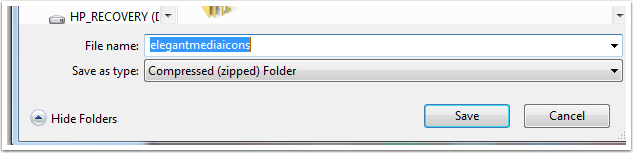
Double Click on the Zipped File to Open It
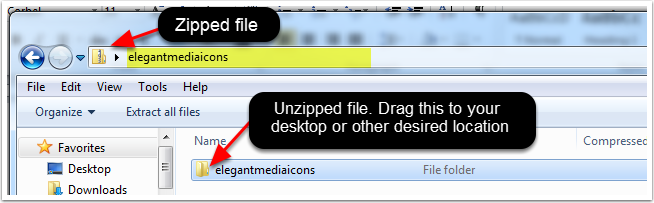
Once you click on your file, it will be unzipped so you can access the files inside of it. Double click on it. You should see contents like the file below. Please note, your files may differ if you downloaded a different icon package. *You must move the files out of the zipped folder in order to upload them to WordPress. To do this, drag the folder to your Desktop (or other desired location.)
Login to Your WordPress Dashboard
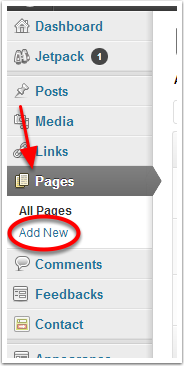
Click Pages>Add New
WordPress Displays a New Page
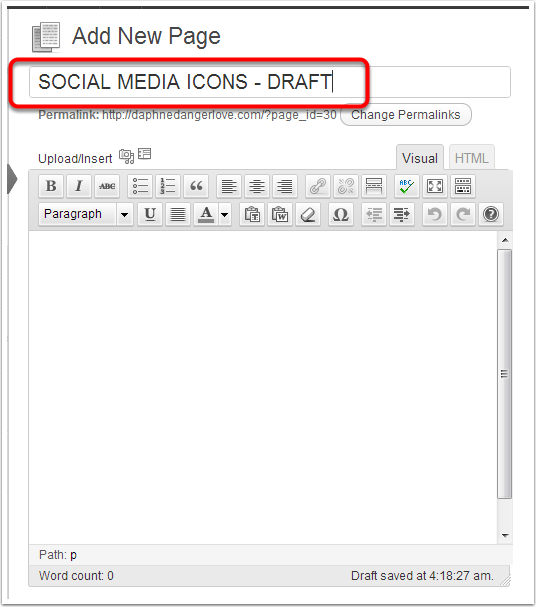
You’re going to use the text field on this page to create the html you need for your buttons. You won’t be publishing it. To minimize confusion, I label the page in CAPS to differentiate it.
Adding Your Icons
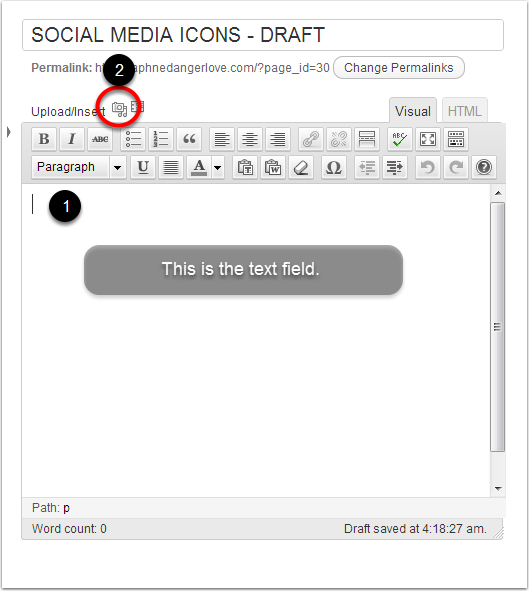
1. Click once in the text field so you are ready to work. 2. Click the Upload/Insert Add Media button.
How to Add Social Media Icons to Your Website – The Self Publishing Toolkit
The Add Media Box
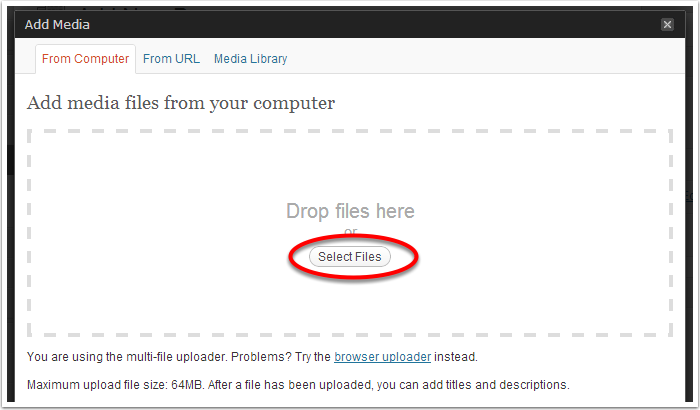
In the Add media files from your computer box, click Select Files.
 Navigate to Your Icons
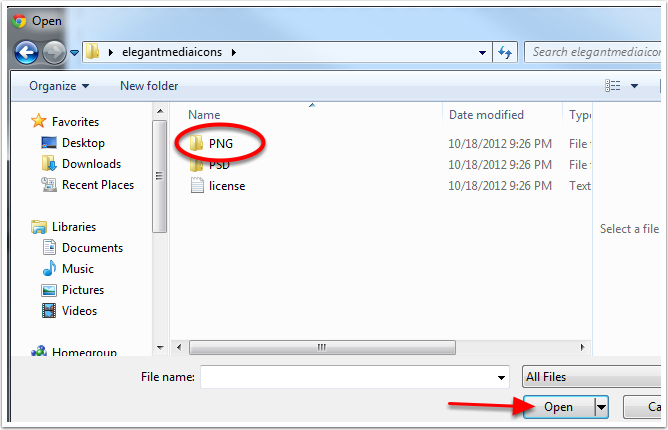
Browse to the folder that contains your Social Media Icons. Depending on the Icon Pack you chose, you may need to open an additional folder as shown in the screen cap below. If the icons do not display immediately, look for a folder labeled PNG like the one below. You’ll find the icons inside that folder.
Select Your Icons
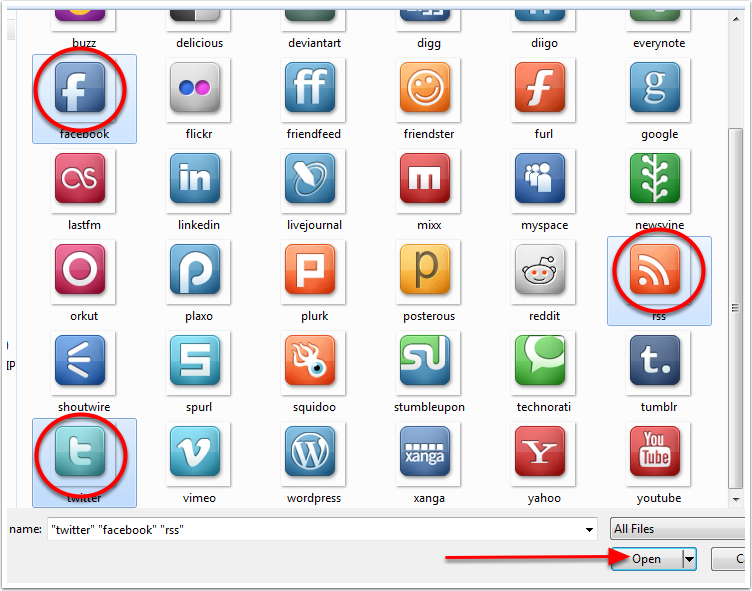
Select the icons you want to use from the list. I’m going to go with Facebook, Twitter and RSS. Hold down the CTRL key to make multiple selections at once. Click open.
WordPress will upload your files.
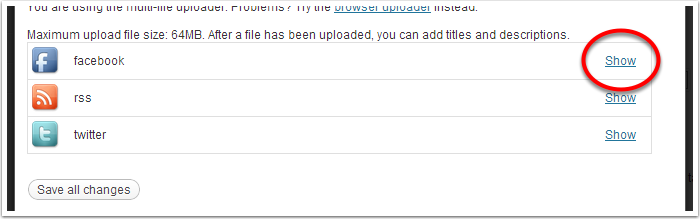
Now we are going to edit each file to add the appropriate links. Click show next to the Facebook Icon.
Enter the File Information
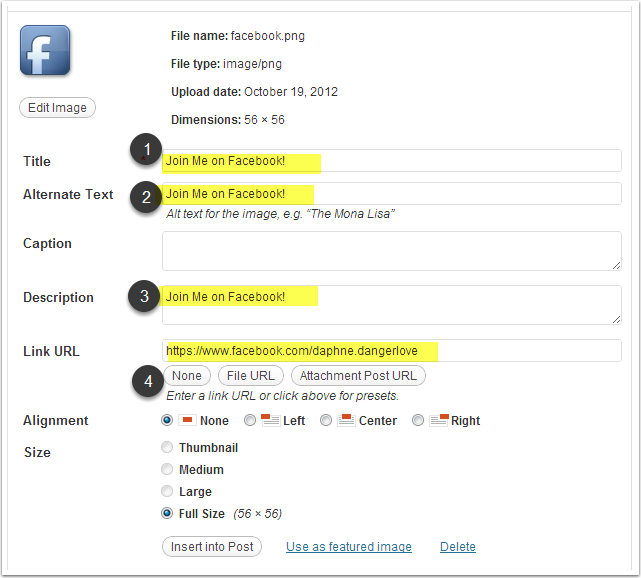
Fill in all of the fields highlighted: 1. This is the text that will display when a user hovers their mouse over your icon. 2. This is what will display if a user does not have images enabled on their browser or they cannot view images. 3. This appears in your Media Library to tell you what the file is. 4. This is the webpage the user goes to when they click on your icon. When you are done, click Insert into Post.
Repeat this Step for All of Your Icons
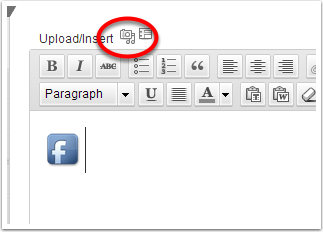
Once you’ve inserted an icon, you’ll have to click the Upload/Insert Add Media button so you can access your previously uploaded images.
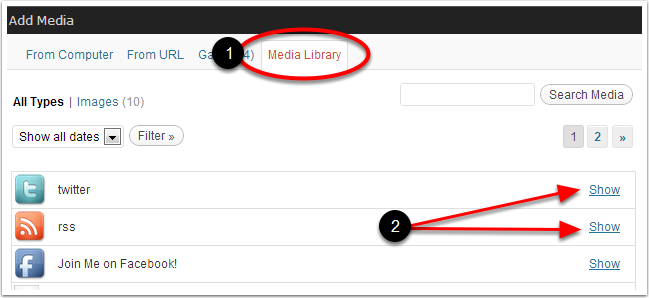
1.They’ll be located in the Media Library. (WordPress will default to the upload screen.) 2. Click Show to edit the icon’s properties.
Your Icons
When you are done, you should have a row of icons like this: *If you have a thin gray line around each of your icons, please see next step.

Troubleshooting Gray Box Around Icons
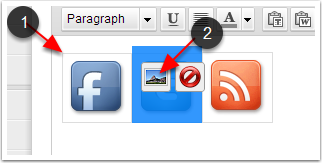
1. If you have a thin gray line around your icons, click the icon once. 2. Click on the picture icon. A dialog box will pop up that will allow you to edit the image’s settings.
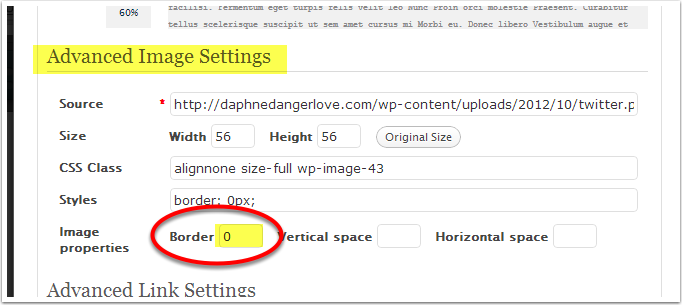
Under Advanced Image Settings put a 0 (zero) in the Border field. Click the Update button at the bottom of the dialog box. Then click the X in the top right corner to close the dialog. The gray box around the image will be gone.
Copying Your Code
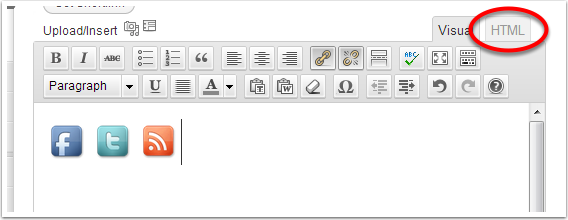
Click the HTML tab in the top right corner of the text editor.
High-light Your Code
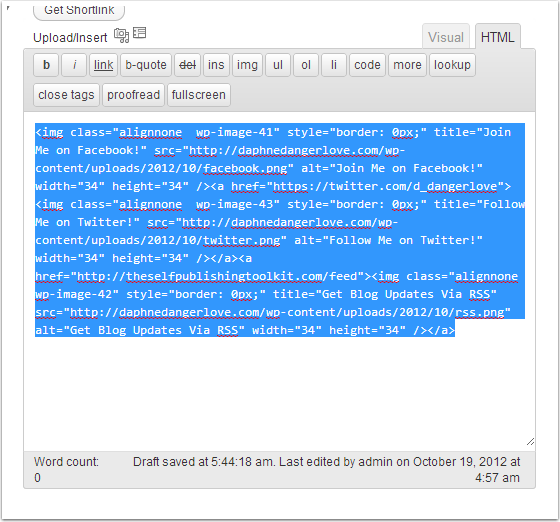
High-light your code, then right click to copy it.
Widgets
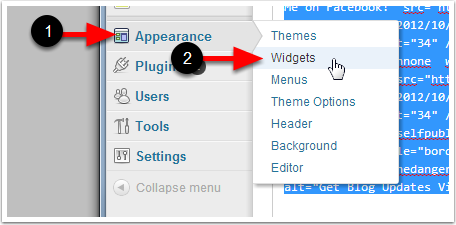
1. In the Sidebar, hover your mouse over Appearance until you see the fly out menu. 2. Right click Widgets, then select open in new tab.
Adding a Text Widget
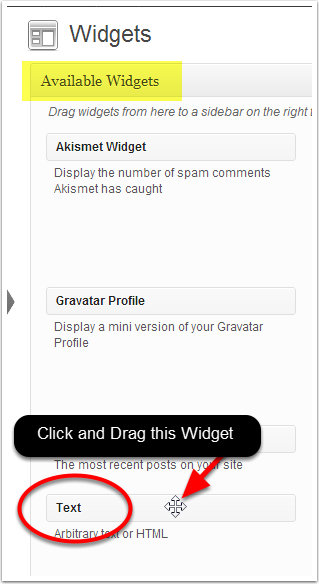
From Available Widgets, drag a text widget into the Main Sidebar column. The cursor will turn into a funky plus sign with arrows on it, indicating you can drag it.
The Text Widget
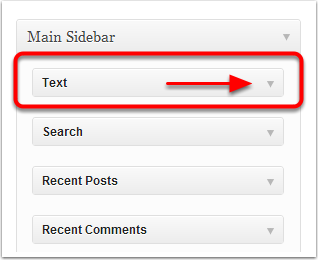
Your text widget should be at the top of the list of Widgets in your sidebar. Click the drop down arrow to display the text area for the Widget.
Paste Your Code
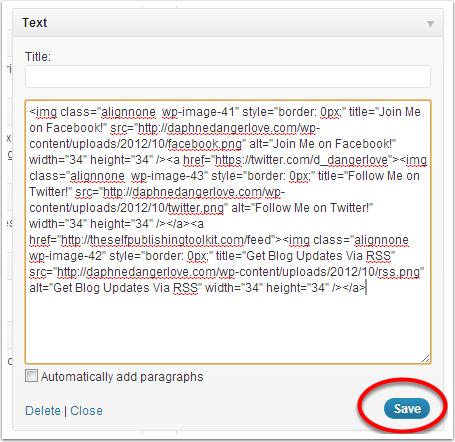
Click once in the text area to activate it. Then paste your code into the box. Click Save. Click Close.
View Your Site
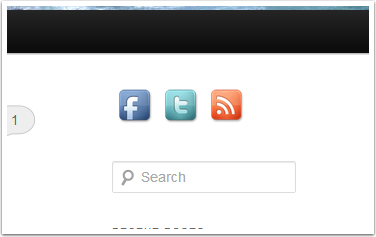
Check it out! Your icons should look just like this!

A Few Final Notes
This tutorial was made with Twenty Eleven–the theme that ships free with WordPress. Depending on the theme you are using, you may be able to locate your icons in different areas on your site. On the Self Publishing Toolkit site, I am using the Prose Theme by Studio Press. This theme allows me to locate the icons in the header.
Thanks for Reading!
This tutorial is a production of the Self Publishing Toolkit. If you have questions, please contact me at daphne@theselfpublishingtoolkit.com



Great tutorial for people getting there social icons in! I like how you used a post to create the HTML, some people get overwhelmed with writing the code for that!
-Chris
You are so awesome!!! Thank You!!! I dig around web forever and got to your page. The best tutorial!